
eXPORT IFC TO EXCEl
Convert an IFC file to CSV using IfcOpenShell
Author: Andrei Savitski
Publication date: Frebruary 21, 2024
The IFC format is a standard in the construction industry. Despite this, it still does not have a fully featured viewer capable of unlocking the full potential of this format, such as exporting IFC data to Excel in order to visualize, in a tabulated way, each of the elements that make up a model.
For this reason, when at VBB we encountered this situation, we did not find any tool that allowed us to do this natively. We only found IFC viewer plugins that were too expensive for the occasional use we intended.
Therefore, while researching alternative ways to export IFC data to Excel, we came across the IfcOpenShell library.
Using this Python library, we were able to generate a CSV file from IFC models and then read it in Excel.
Index:
- Check The Python version
- Download Python
- Download IfcOpenShell
- Download our script WITHOUT the resources
- Add the IfcOpenShell library
- Download our script WITH the resources
- Install Python
- Install an IDE such as Visual Studio Code
- Include in the script the parameters you want to tabulate
- Copy the IFC models into the same folder as the script
- Run the script
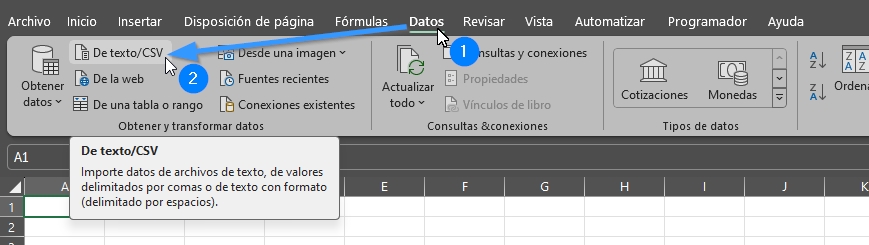
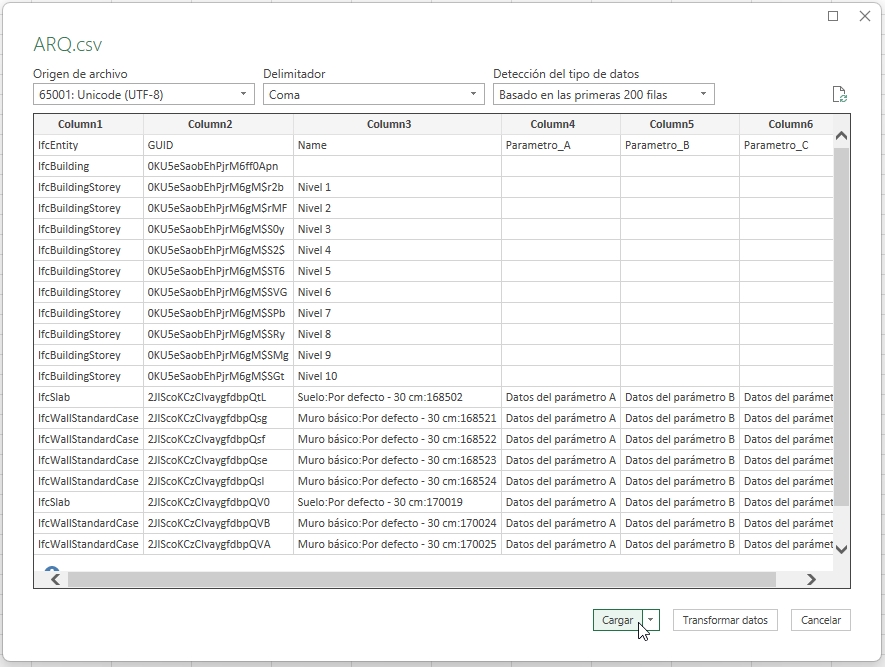
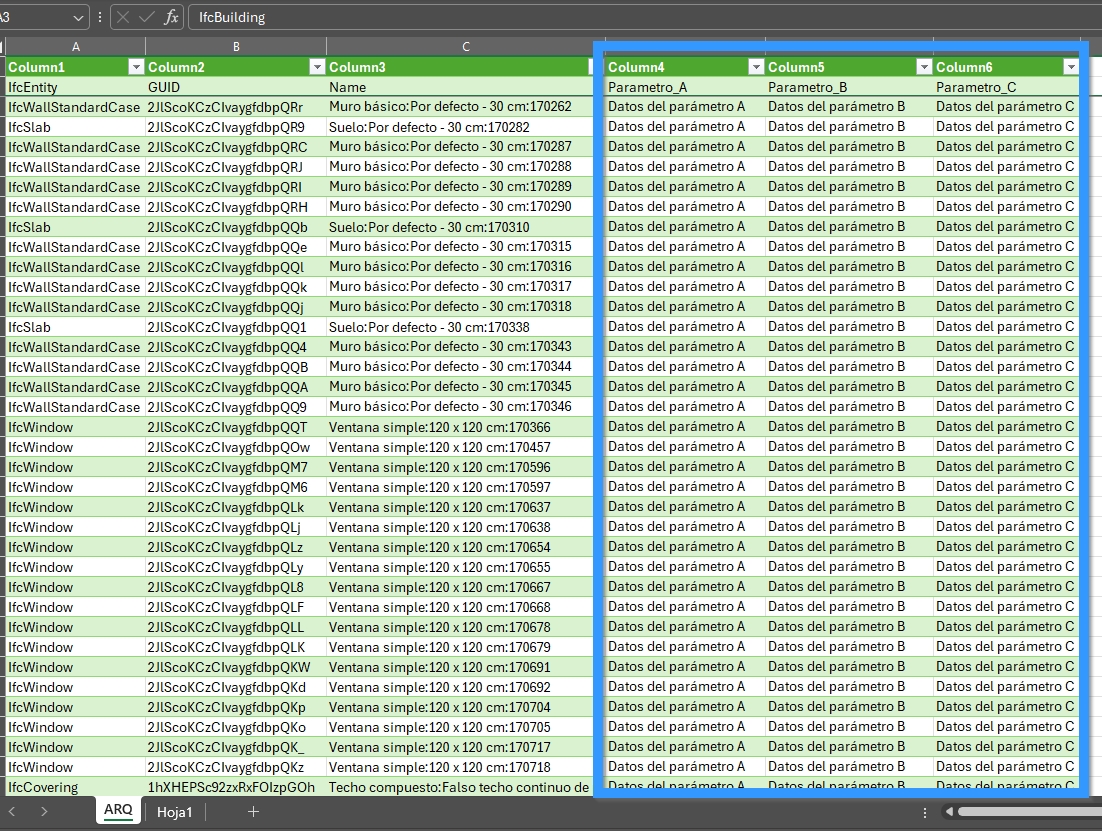
- Load the CSV data into Excel
What is IfcOpenShell?
IfcOpenShell is an open-source library developed in Python for working with IFC (Industry Foundation Classes) files. This library allows developers to read, write, and manipulate Building Information Models (BIM) based on the IFC standard.
IfcOpenShell provides a range of tools and functions that facilitate the extraction, manipulation, and visualization of data contained in IFC files. This is especially useful for applications that require interoperability with the IFC standard or for those that aim to perform advanced construction data analysis.
Some of the features of IfcOpenShell include the ability to read and write IFC files, perform complex queries on model information, convert models to other formats such as OBJ or STL for visualization in 3D modeling software, and work with geometry and properties of building elements.
In summary, IfcOpenShell is a valuable tool for anyone who needs to work with IFC data in their applications or projects, as it provides a convenient way to interact with building information based on this standard.
Steps to Export an Ifc to Excel
1. Check the Python version
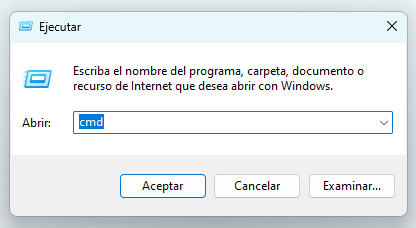
As mentioned earlier, IfcOpenShell works with Python. Therefore, we must take into account the Python version installed on our system in order to download the corresponding version of IfcOpenShell.
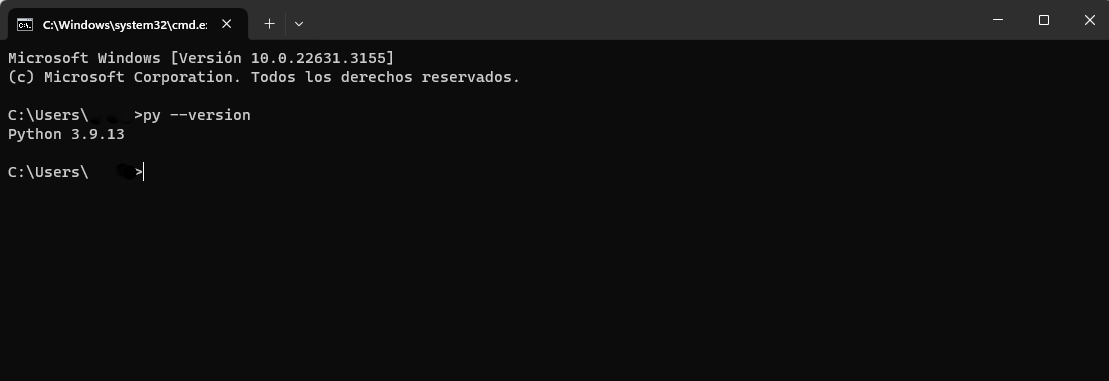
To check this on Windows, press Win + R and type cmd.
In the command prompt window, enter the following command (it is important to respect spaces and lowercase letters):
py --version
For older Python versions, this may result in an error. If so, try:
python --versionIf, as shown in the screenshot above, we have a version of Python installed, we need to download the corresponding version of IfcOpenShell. To do this, you can go to step 3.
If, on the other hand, you do not have any version of Python installed, you can go to step 6. We will provide you with a compressed file containing everything necessary to export IFC models to Excel.
If you prefer to do it yourself, you can proceed to the next step.
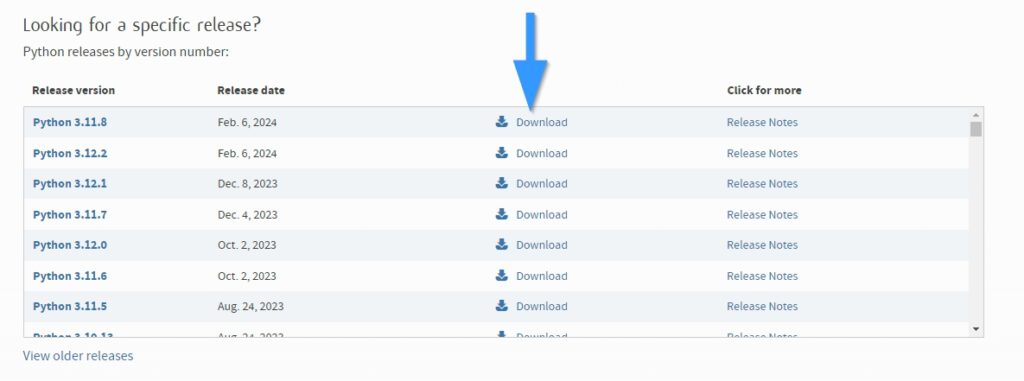
2. Download Python
If Python is not installed, follow this link: Download Python | Python.org.
Make sure that the version of Python you download is compatible with the latest version of IfcOpenShell.
Once Python is installed on your system, you can proceed to the next step.
3. Download IfcOpenShell
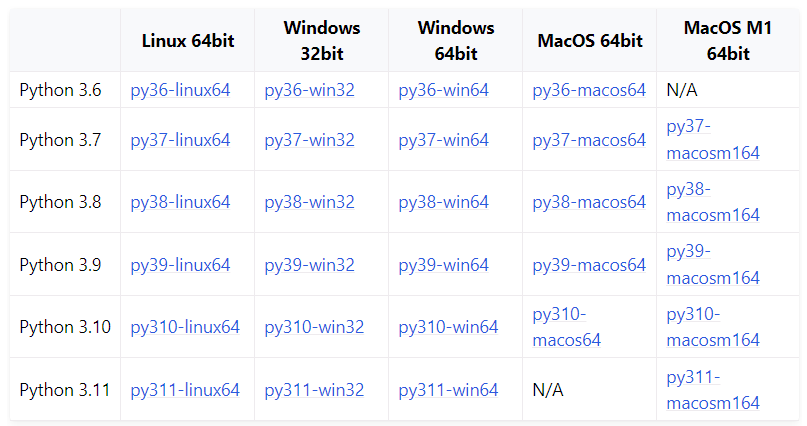
If the Python interpreter is installed, go to Installation – IfcOpenShell 0.7.0 documentation (blenderbim.org) and, in the version table, look for the package that matches your Python version and operating system.
Once Python is installed on your system, you can proceed to the next step.
4. Download our script WITHOUT the resources
You can download the script here:
Once downloaded, it must be extracted and placed in the desired directory, then proceed to the next step.
5. Add the IfcOpenShell library
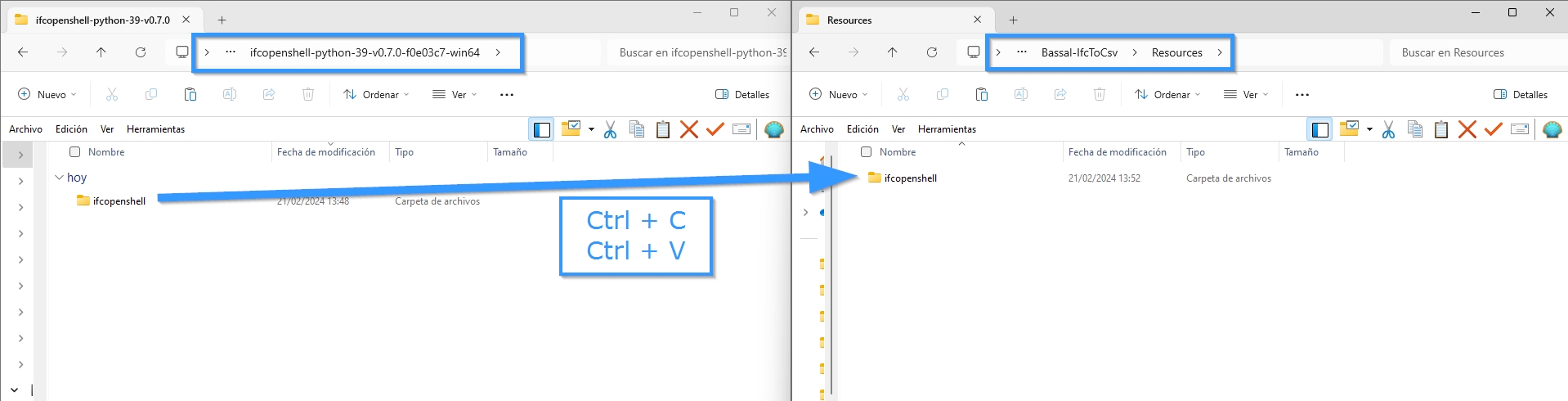
Copy the folder named “ifcopenshell” into the “Resources” folder.
Once the “ifcopenshell” folder has been copied, we are ready to proceed with installing Python in step 7 (Yes, there is no need to go through step 6).
6. Download our script WITH the resources
You can download the script here:
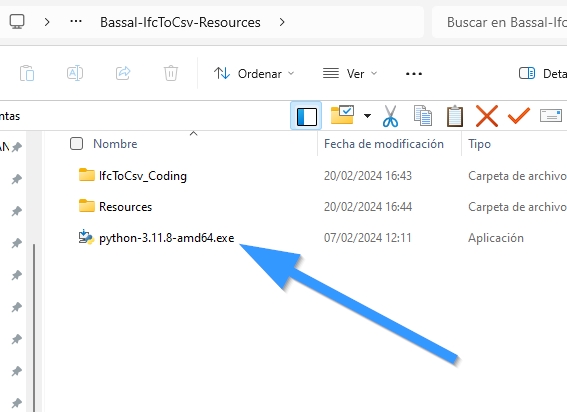
This file is a compressed folder containing everything necessary for you to be able to export IFC to Excel.
Once the compressed file has been downloaded, you can extract it and proceed to the next step.
7. Installing Python
If you do not have it installed, you can do so using the file downloaded in step 2. If you did not go through step 2, don’t worry. In the compressed file downloaded in the previous step—with all the necessary resources—we have included an executable to install a version of Python.
Once the installation is complete, move on to the next step.
8. Install an IDE such as Visual Studio Code
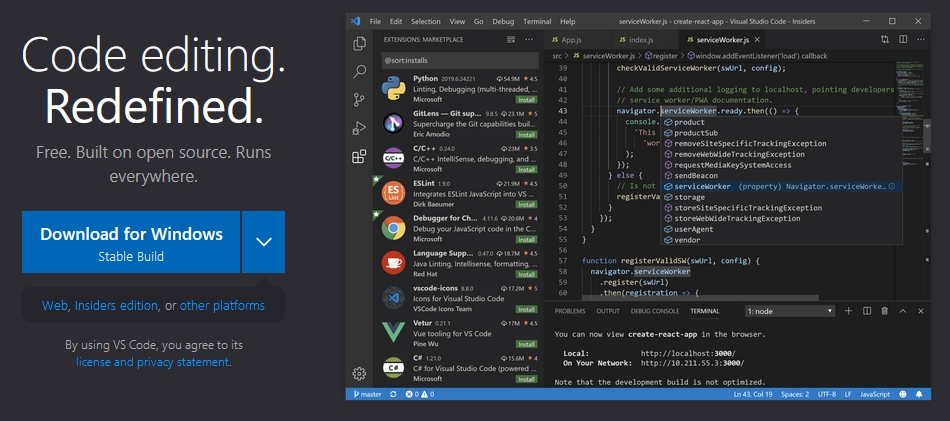
If you already have one, you can skip this step.
If not, we’ll explain that when we refer to an IDE, we mean a tool that allows you to edit code.
If you’re deeply involved in the BIM methodology, using a code editor is increasingly common for creating scripts that automate your work or provide extra capabilities, as we are explaining in this post.
An IDE we usually use is Visual Studio Code, which you can download through its website or by clicking the image.
After installing VSC, we move on to the next step.
9. Include the parameters you want to tabulate in the script
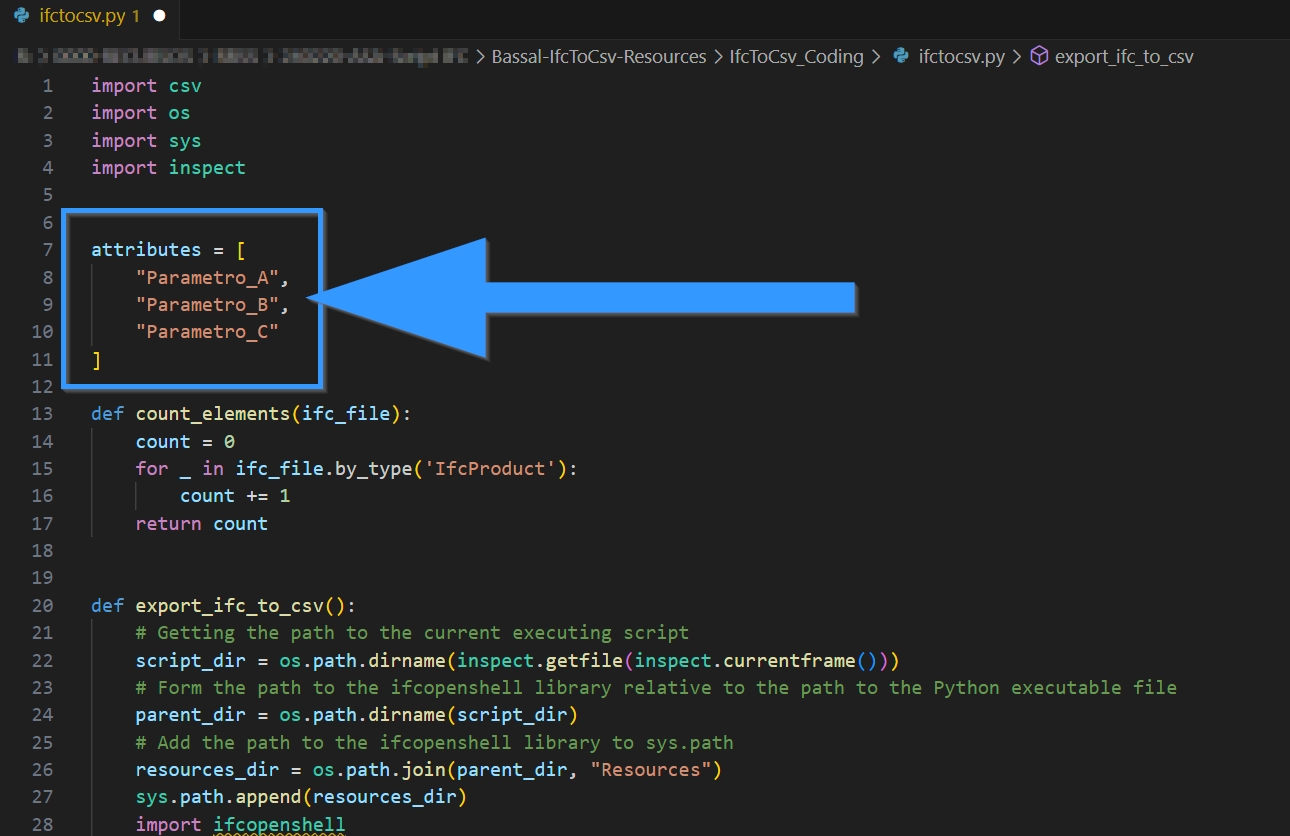
By “tabulate,” we mean the parameters that will appear in the header of the CSV file generated by the script.
For this example, we have prepared a downloadable example with three parameters. You can replace them with the parameters you need. These parameters will appear in the header when you export your IFC models to Excel.
Once we’ve chosen our parameters, we move on to the next step.
10. Copy the IFC models into the same folder as the script
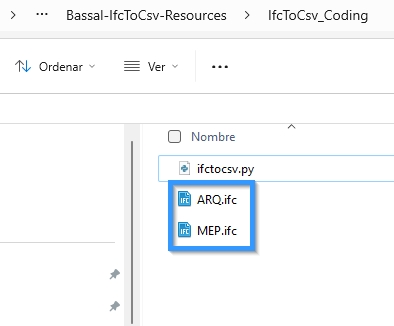
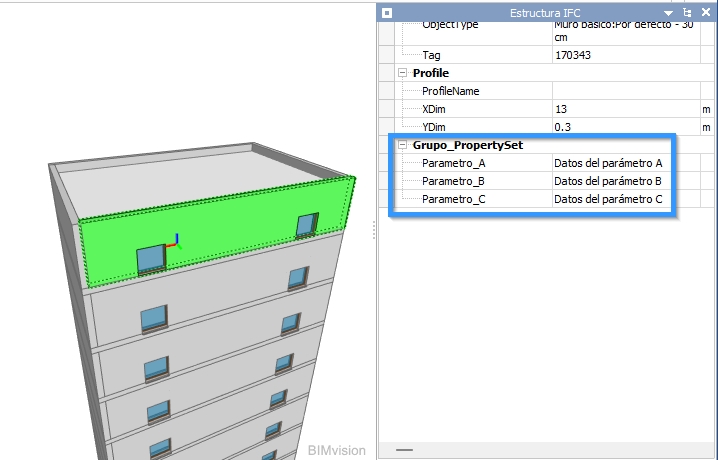
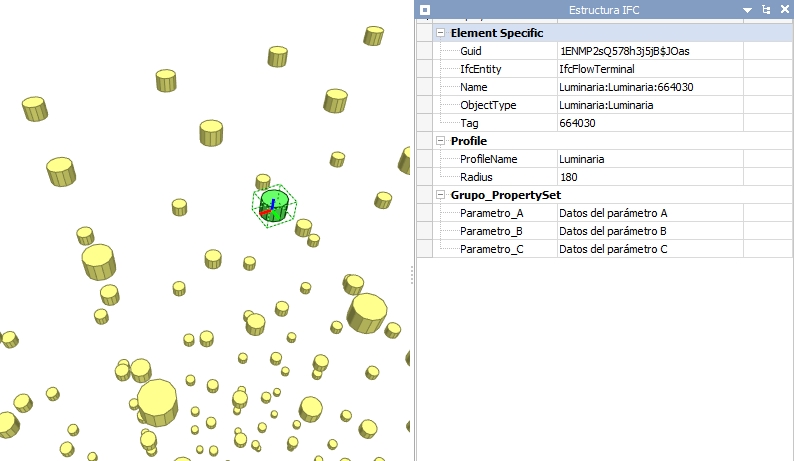
In the example in the screenshot, we’ll use two models:
One simulates an architectural model with only walls, floors, ceilings, and windows.
Another simulates a MEP model with only lighting fixtures.
If you want, you can download the models here.
If you open the models, you’ll see that they have a set of properties with the parameters we detailed earlier in the script.
Once they are copied, we can proceed to run the script.
11. Run the script
Once the code is configured and the models are in the same folder as the script, we can run it.
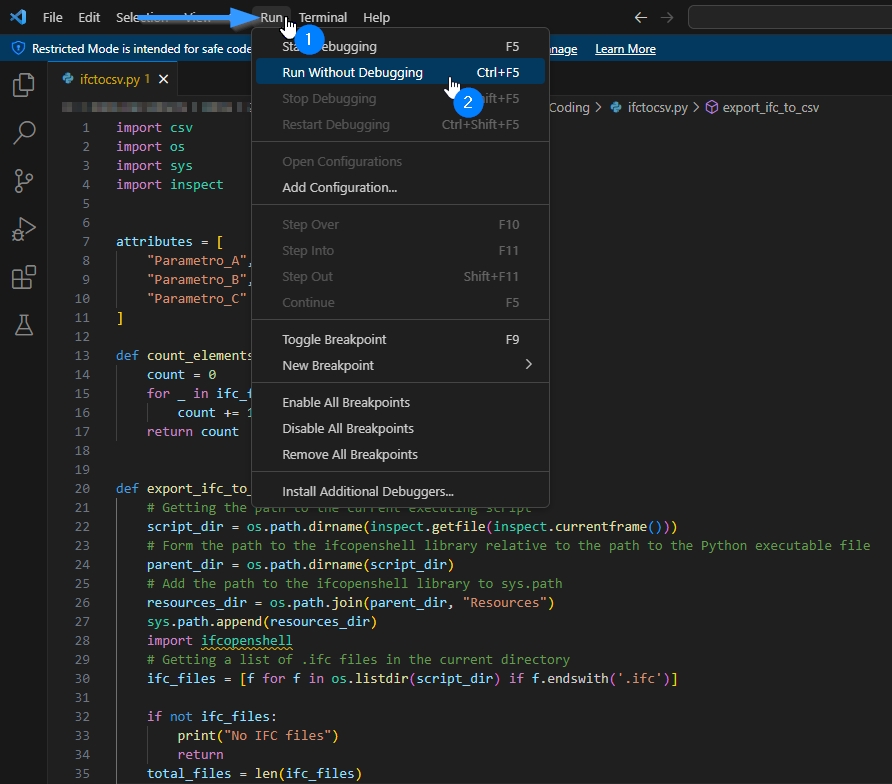
Running a script may differ depending on the IDE chosen. In Visual Studio Code, it would be under the Run tab, then Run Without Debugging:
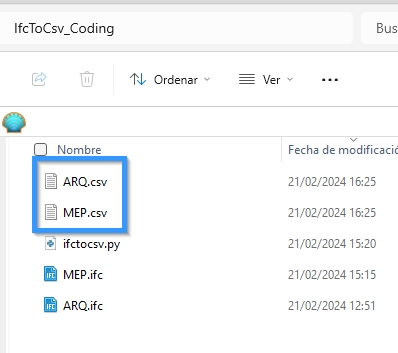
When execution is complete, two CSV files will appear in the same folder, named the same as the IFC models.
These CSV files are what allow us to export from IFC to Excel, as detailed below.
Conclusiones sobre la exportación de IFC a Excel
It should be noted that this script is a very basic variant of using the IfcOpenShell library.
After testing this library, we have seen that if you know Python, you can manipulate the model by editing not only its parameters but also the geometry of the elements.
For now, we are continuing to develop the script to make it more user-friendly, discovering each of its advantages to fully unleash the potential of IFC.
WHY CHOOSE US?
At VBB, we have a team of BIM experts with extensive experience in the construction industry.
Our core values are quality, innovation, and client satisfaction. We are committed to providing tailored solutions that align with your vision and objectives.
TRANSFORM YOUR PROJECTS WITH OUR SERVICES!
Don’t fall behind in the race toward the construction of the future. Contact VBB and discover how our BIM Consultancy can transform your projects, save you time and money, and improve the quality of your constructions. Together, we can take your business to the next level.
Get in touch with us to start building the future together.
We are looking for talented professionals to strengthen our team.
This is a great opportunity for candidates with experience in engineering, BIM and the UAE construction market.
Send us your CV to info@vbbengineering.com we would be happy to hear from you!